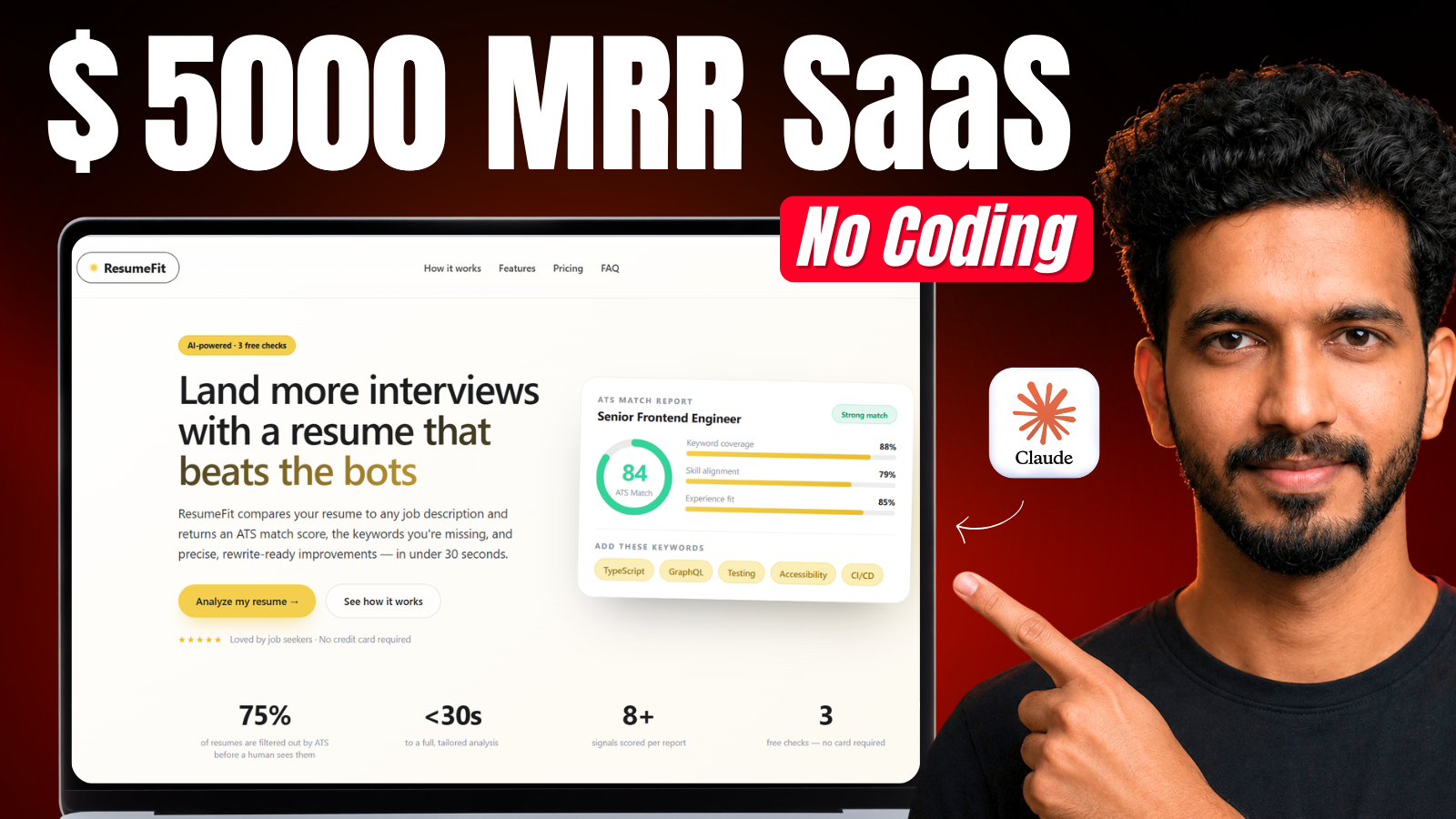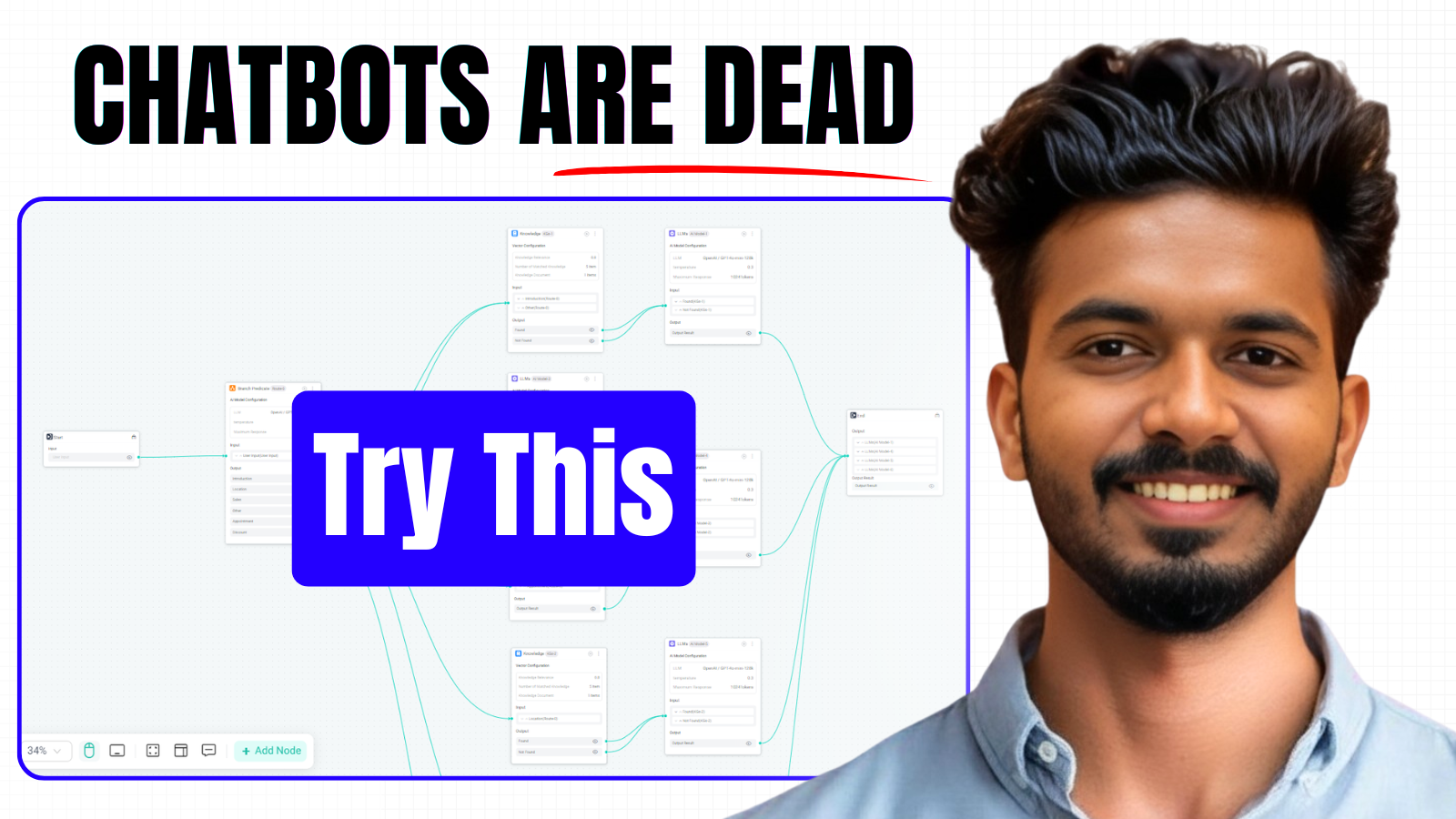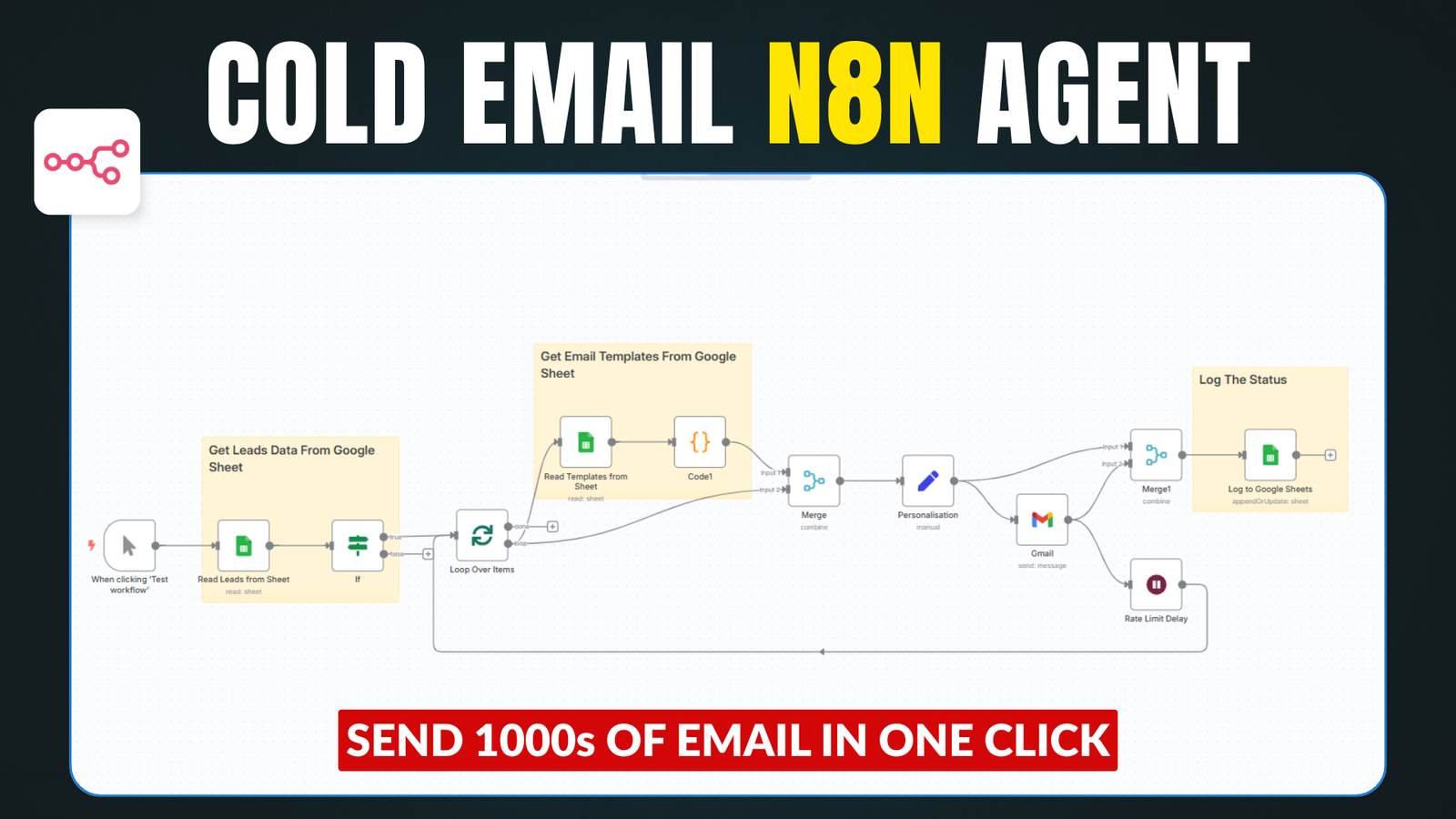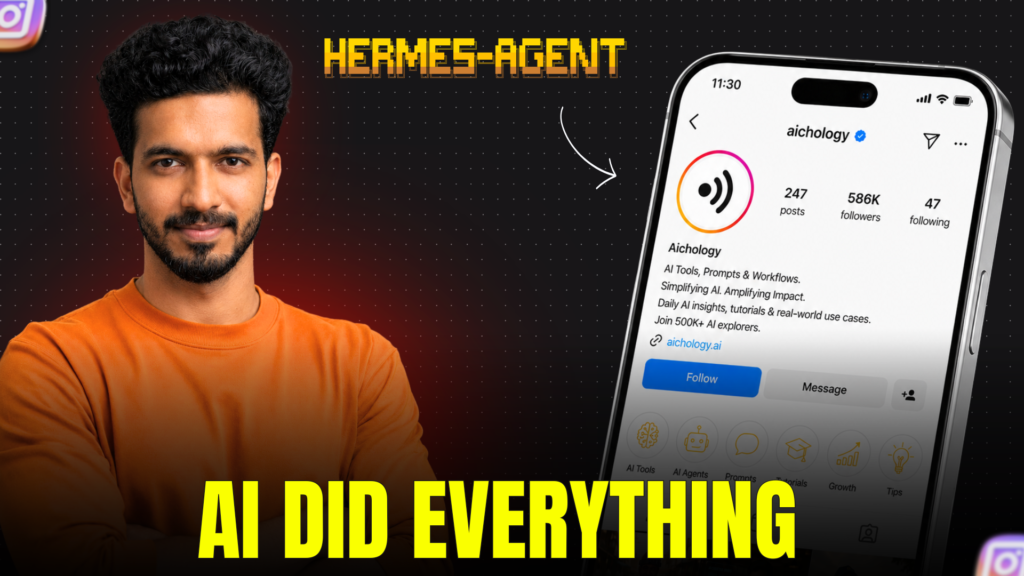
I don’t write captions. I don’t design posts. I don’t even search for content ideas. Hermes Agent does all of it — and in this post I’ll show you exactly how I set it up with just two skill files.
What the Workflow Looks Like
Every time I want a new Instagram post, Hermes Agent:
- Fetches the latest trending news using Firecrawl
- Designs a ready-to-post graphic with an Instagram caption
- Delivers everything in one go — ready to upload
Step 1 — Add the Firecrawl Skill
This skill tells Hermes how to browse the web and pull fresh news content. Just copy the content below and sent it to your Hermes agent.
Filename: firecrawl.md
---
name: firecrawl
description: |
  Firecrawl gives AI agents and apps fast, reliable web context with
  strong search, scraping, and interaction tools. One install command
  sets up three skill segments: live CLI tools, app-integration build
  skills, and outcome-focused workflow skills. Route the reader to the
  right usage path after install.
---

# Firecrawl

Firecrawl helps agents search first, scrape clean content, interact
with live pages when plain extraction is not enough, and produce
finished deliverables from web data.

## Install

One command installs everything — the Firecrawl CLI for live web work,
the build skills for integrating Firecrawl into application code, **and**
the workflow skills for producing repeatable deliverables. It also opens
browser auth so the human can sign in or create an account.

```bash
npx -y firecrawl-cli@latest init --all --browser
```

This gives you:

- **CLI tools** — `firecrawl search`, `firecrawl scrape`, `firecrawl interact`, `firecrawl ask`, `firecrawl docs-search`, and more
- **CLI skills** ([`firecrawl/cli`](https://github.com/firecrawl/cli)) — teach the agent how to drive the Firecrawl CLI during its own session: which command to run, when to scrape vs search vs interact, how to chain results, and how to recover when a job fails. Use these when the agent itself needs web data right now.
- **Build skills** ([`firecrawl/skills`](https://github.com/firecrawl/skills)) — teach the agent how to add Firecrawl to a product's codebase: pick the right API endpoint, install the matching SDK, store `FIRECRAWL_API_KEY` safely, write the call site to match the project's conventions, and ship a smoke-tested integration. Use these when the agent is shipping code that other people will run, not running the agent's own web tools.
- **Workflow skills** ([`firecrawl/firecrawl-workflows`](https://github.com/firecrawl/firecrawl-workflows)) — turn Firecrawl web data into finished deliverables such as research briefs, SEO audits, lead lists, QA reports, knowledge bases, and design clones. Use these when the agent's job is to produce a finished artifact, not raw extraction or product code.
- **Browser auth** — walks the human through sign-in or account creation

The three skill segments map to three different jobs:

| Segment | Question it answers | Where the work runs |
| ------- | ------------------- | ------------------- |
| CLI skills | "Which Firecrawl command should I run right now?" | In the agent's own terminal session |
| Build skills | "How do I add a Firecrawl API call to this codebase?" | Inside the user's product code |
| Workflow skills | "What's the finished deliverable and how do I produce it?" | In the agent's session, producing an artifact |

Before doing real work, verify the install:

```bash
mkdir -p .firecrawl
firecrawl --status
firecrawl scrape "https://firecrawl.dev" -o .firecrawl/install-check.md
```

## Choose Your Path

All paths use the same install above. The difference is what you do
next.

- **Need web data during this session** -> Path A (live tools)
- **Need to add Firecrawl to app code** -> Path B (app integration)
- **Need a finished deliverable from web data** -> Path C (workflow skills)
- **Need more than one of the above** -> do them in sequence; the install already covers everything
- **Need an account or API key first** -> Path D (auth only)
- **Don't want to install anything** -> Path E (REST API directly)

---

## Path A: Live Web Tools

Use this when you need web data during your work: searching the web,
scraping known URLs, interacting with live pages, crawling docs, or
mapping a site.

After install, hand off to the CLI skill:

- `firecrawl/cli` for the overall command workflow
- `firecrawl-search` when you need search first
- `firecrawl-scrape` when you already have a URL
- `firecrawl-interact` when the page needs clicks, forms, or login
- `firecrawl-crawl` for bulk extraction
- `firecrawl-map` for URL discovery
- `firecrawl-ask` when a Firecrawl call fails or returns unexpected output — pass the failing `jobId` and the AI support agent diagnoses it from your team's job logs and account state
- `firecrawl-docs-search` for "how does Firecrawl handle X?" questions — answers grounded in current docs with source citations

Default flow for live web work:

1. start with search when you need discovery
2. move to scrape when you have a URL
3. use interact only when the page needs clicks, forms, or login
4. if any step fails or returns unexpected output, run `firecrawl ask` with the failing `jobId` instead of guessing

If the task becomes "wire Firecrawl into product code," switch to Path B.

---

## Path B: Integrate Firecrawl Into an App

Use this when you're building an application, agent, or workflow that
calls the Firecrawl API **from code** — meaning the integration will run
inside the user's product (a web app, backend service, script, agent
loop, or pipeline) rather than from the agent's own terminal session.

This is the key difference from Path A: Path A runs `firecrawl ...`
commands during the current session to fetch data for the agent itself.
Path B writes code that will keep running long after the agent stops,
using `FIRECRAWL_API_KEY` from the project's `.env` or runtime config
and the matching Firecrawl SDK in the project's language.

The build skills are already installed from the same command above. No
separate install needed.

Choose the project mode before writing code:

- **Fresh project** -> pick the stack, install the SDK, add env vars, and run a smoke test
- **Existing project** -> inspect the repo first, then integrate Firecrawl where the project already handles APIs and secrets

If you already have a key, save it to the project's environment:

```dotenv
FIRECRAWL_API_KEY=fc-...
```

Then hand off to the build skill that fits the step:

- `firecrawl-build` for the overall build workflow and endpoint routing
- `firecrawl-build-onboarding` for auth and project setup (API key, SDK install, smoke test)
- `firecrawl-build-scrape` when the feature scrapes a known URL
- `firecrawl-build-search` when the feature starts with a query and discovers pages
- `firecrawl-build-interact` when the feature needs clicks, forms, or navigation after a scrape
- `firecrawl-build-parse` when the feature parses local or non-public document files (PDF, DOCX, XLSX, etc.)

The required question in the build path is:

- **What should Firecrawl do in the product?**

Use the answer to route to `/search`, `/scrape`, `/interact`, `/parse`, `/crawl`, or `/map`, then run one real Firecrawl request as a smoke test.

If you do not have a key yet, do Path D first.

---

## Path C: Repeatable Deliverables

Use this when the goal is a finished artifact powered by Firecrawl web
data — a research brief, SEO audit, QA report, lead list, knowledge
base, competitive intel digest, or a cloned design system — not raw web
extraction and not product-code integration.

Workflow skills infer from context first and only ask short clarifying
questions when an input would block the work. They also call out
independently parallelizable units so sub-agents can fan out across
competitors, pages, or sources.

Start with the umbrella `firecrawl-workflows` skill — it inspects the
user's request and routes to the right workflow (research, SEO, lead
gen, QA, knowledge base, design clone, and others). If the agent
already knows which workflow to run, hand off to that workflow skill
directly.

The full skill list lives in the [workflows repo](https://github.com/firecrawl/firecrawl-workflows).

Default flow for workflow deliverables:

1. confirm the workflow and final artifact with the user
2. collect web evidence with Firecrawl through the CLI or equivalent tool surface
3. save or cite source evidence so claims are traceable
4. run independent research units in parallel when available
5. synthesize findings into the requested deliverable
6. include a short "rerun inputs" block when the workflow could be automated

If the underlying web work fails or the request shifts to "wire Firecrawl into product code," switch to Path A or Path B.

---

## Path D: Account Authorization Or API Key

Use this when the human still needs to sign up, sign in, authorize
access, or obtain an API key.

This browser flow is different from `https://www.firecrawl.dev/auth.md`. Use `auth.md` only when the agent platform can mint a WorkOS ID-JAG identity assertion and wants to exchange it directly at `/agent/auth`. Use this path when a human needs to authorize Firecrawl in the browser and hand an API key back to the agent or project.

If you ran the install command above with `--browser`, the human was
already prompted to sign in. Check if the key is available before
running this flow.

If you already have a valid `FIRECRAWL_API_KEY`, skip this path.

If you're the human reading this in the browser, create an account or
sign in at:

- https://www.firecrawl.dev/signin?view=signup&source=agent-suggested

If you're an agent and need the human to authorize an API key, use this
flow:

**Step 1 — Generate auth parameters:**

```bash
SESSION_ID=$(openssl rand -hex 32)
CODE_VERIFIER=$(openssl rand -base64 32 | tr '+/' '-_' | tr -d '=\n' | head -c 43)
CODE_CHALLENGE=$(printf '%s' "$CODE_VERIFIER" | openssl dgst -sha256 -binary | openssl base64 -A | tr '+/' '-_' | tr -d '=')
```

**Step 2 — Ask the human to open this URL:**

```
https://www.firecrawl.dev/cli-auth?code_challenge=$CODE_CHALLENGE&source=coding-agent#session_id=$SESSION_ID
```

If they already have a Firecrawl account, they'll sign in and authorize.
If not, they'll create one first and then authorize. The API key comes
back to you automatically after they click "Authorize."

**Step 3 — Poll for the API key:**

```bash
POST https://www.firecrawl.dev/api/auth/cli/status
Content-Type: application/json

{"session_id": "$SESSION_ID", "code_verifier": "$CODE_VERIFIER"}
```

Poll every 3 seconds. Responses:

- `{"status": "pending"}` — keep polling
- `{"status": "complete", "apiKey": "fc-...", "teamName": "..."}` — done

**Step 4 — Save the key and continue:**

```bash
echo "FIRECRAWL_API_KEY=fc-..." >> .env
```

---

## Path E: Use Firecrawl Without Installing Anything

Use this when you don't want to install a CLI or skills package. This
works for both use cases:

- **Live web work** — an agent calling the API directly for search,
  scrape, or interact during a session
- **Building with Firecrawl** — integrating the REST API into app code

You still need an API key. Two ways to get one:

- **Human pastes it in** — if you already have a key, just set
  `FIRECRAWL_API_KEY=fc-...` in your environment or pass it directly
- **Automated flow** — do Path D to walk the human through browser auth
  and receive the key automatically

**Base URL:** `https://api.firecrawl.dev/v2`

**Auth header:** `Authorization: Bearer fc-YOUR_API_KEY`

### Available endpoints

- `POST /search` — discover pages by query, returns results with optional full-page content
- `POST /scrape` — extract clean markdown from a single URL
- `POST /interact` — browser actions on live pages (clicks, forms, navigation)
- `POST /support/ask` — diagnose a failing Firecrawl call. Pass `{ question, jobId? }`; returns a prose `answer` plus machine-readable `fixParameters` to retry with. Auto-scoped to your team via the bearer key
- `POST /support/docs-search` — answer "how do I…" questions from Firecrawl's official docs. Pass `{ question }`; returns the answer plus citations to the docs pages used

### Documentation and references

The API docs are the source of truth for request/response schemas,
parameters, and SDKs:

- **API reference:** https://docs.firecrawl.dev
- **Skills repo** (for agent integration patterns): https://github.com/firecrawl/skills
Step 2 — Add the Image Generation Skill
This skill handles the design part — it takes the news content and turns it into a proper Instagram graphic with caption.
Filename: image-generation.md
---
name: image-generator
description: Generate images and text using Gemini 3.1 Flash Image Preview (Google AI Studio)
version: 1.0.0
author: Rajeevdaz
license: MIT
platforms: [macos, linux, windows]

metadata:
  hermes:
    tags: [AI, Gemini, Image Generation, Google, Multimodal]
    requires_toolsets: [web]
    requires_tools: [web_search]

required_environment_variables:
  - name: GOOGLE_AI_API_KEY
    prompt: "Enter your Google AI Studio API key"
    help: "Get it from https://aistudio.google.com/app/apikey"
    required_for: "Google AI API access"
---

# Gemini Image Generator (Flash Image Preview)

Use Gemini 3.1 Flash Image Preview to generate images and text from prompts.

## When to Use
- User asks to generate image, photo, thumbnail, poster, or design
- Also supports normal text generation

## Quick Reference

| Task            | Example Prompt                        |
|-----------------|--------------------------------------|
| Generate image  | "Create YouTube thumbnail for AI"    |
| Generate photo  | "Make realistic photo of robot"      |
| Text output     | "Write caption for Instagram reel"   |

## Procedure

1. Detect intent:
   - If prompt includes: image, photo, thumbnail, poster → treat as image request
   - Otherwise treat as text request

2. Send POST request:

Endpoint:
https://generativelanguage.googleapis.com/v1beta/models/gemini-3.1-flash-image-preview:generateContent?key={{GOOGLE_AI_API_KEY}}

3. Request body:
{
  "contents": [
    {
      "parts": [
        { "text": "{{user_prompt}}" }
      ]
    }
  ]
}

4. Handle response:

- Loop through:
  candidates[0].content.parts[]

- If part contains:
  inline_data.data → this is base64 image
    → decode and return image (PNG)

- If part contains:
  text → return text response

5. Priority:
   - If image exists → return image
   - Else → return text

## Pitfalls

- Image may not always be returned
- Must check all parts[] (not just first)
- Base64 decoding required
- API key must be valid
- Large prompts may reduce performance

## Verification

- If inline_data exists → success (image generated)
- If only text → fallback success
- If empty → retry once, else return error:
  "Gemini image generation failed. Try again."
Step 3 — Test It
Once both skills are added, just send this message to your Hermes Agent:
“Fetch today’s top AI news, create an Instagram post design with caption”
Hermes will handle the rest — fetch, design, caption, done.
Final Thoughts
This is honestly how I run my entire Instagram page now. Two skill files, one agent, zero manual work. And the content quality is actually good.
If you want to see the full setup walkthrough, I’ve covered everything step by step in the video linked below.