As a freelancer, finding clients used to be my biggest headache. Every morning, I’d open Reddit and other platforms to look for leads — because that’s where people actually post when they need a service. But it was eating up so much time. One to two hours of scrolling, every single day, just to find a handful of decent leads.
That’s why I started looking for a way to automate the process. And recently, I found a tool called Outseek AI — and it’s completely changed how I find clients.
What Is Outseek AI?
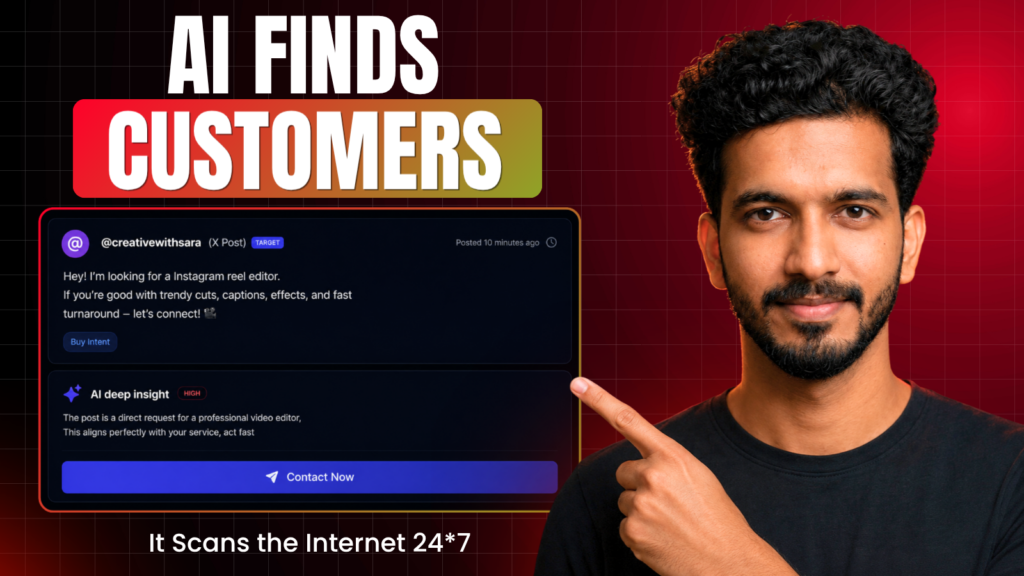
Outseek AI is a lead generation tool that scans the internet 24/7 — Reddit, X, Instagram, Facebook, and more — to find people who are actively looking for services like yours. Instead of manually scrolling through endless posts, the AI does the searching for you and updates your dashboard with fresh leads every single minute.
Once it finds a lead, it doesn’t just stop there. It also generates a personalized, AI-written outreach message, so you can reach out immediately without drafting anything from scratch.
Why This Matters for Freelancers
The biggest advantage isn’t just the time saved — it’s speed. Leads that are posted recently (sometimes just an hour old) have a much higher chance of converting, simply because you’re one of the first people to respond. Outseek AI surfaces these fresh posts in real time, so you can pitch before your competition even sees them.
How to Set Up Outseek AI
Setting up Outseek AI takes just a few minutes:
- Sign up for free at outseekai.com
- Add your business info — your website (optional), business name, target market, and industry
- Describe your service so the AI understands exactly what you offer
- Choose your target audience — B2B, B2C, or both
- Set your work goal — most freelancers will want “Potential Customers and Intent,” which finds high-intent leads actively looking to buy
- Add keywords related to your service (the AI suggests some automatically, and you can add your own)
- Select platforms to monitor — Reddit, X, Blue Sky, YouTube, TikTok, Instagram, and Facebook
- Launch Outseek and you’re taken straight to your dashboard
From there, every new lead shows up in your Social Leads section, along with an AI-generated insight explaining why it’s relevant to your business.
How to Pitch a Lead
For every lead, you simply click Act Now, and Outseek generates a ready-to-send outreach message based on your business profile and the lead’s specific post. You can edit it if needed, then hit Copy and Reply — this takes you straight to the original post so you can respond immediately.
If a lead isn’t relevant, you can click Ignore. If you’re not ready to act yet, click Later to save it for follow-up. The more you use it, the smarter the AI gets at understanding which leads are actually a good fit for you.
Pricing
Outseek AI offers a few plans:
- Free plan – 50 qualified leads per month
- $49/month plan – 400 qualified leads
- Higher tiers – $299/month and $899/month for larger volumes
To put that into perspective: if you get 400 leads on the $49 plan, reach out to 250 of them, and close just 10 clients at $100 each, that’s already $1,000 — a 20x return on your investment. And that’s before factoring in the hours of manual searching you save every single day.
Final Thoughts
As a freelancer, this is genuinely one of the more useful AI tools I’ve come across for lead generation. It doesn’t just save time — it helps you catch opportunities before anyone else does, which often makes the difference between landing a client and missing out.
If you want to see the complete setup process in action, I made a full video walkthrough — watch it now