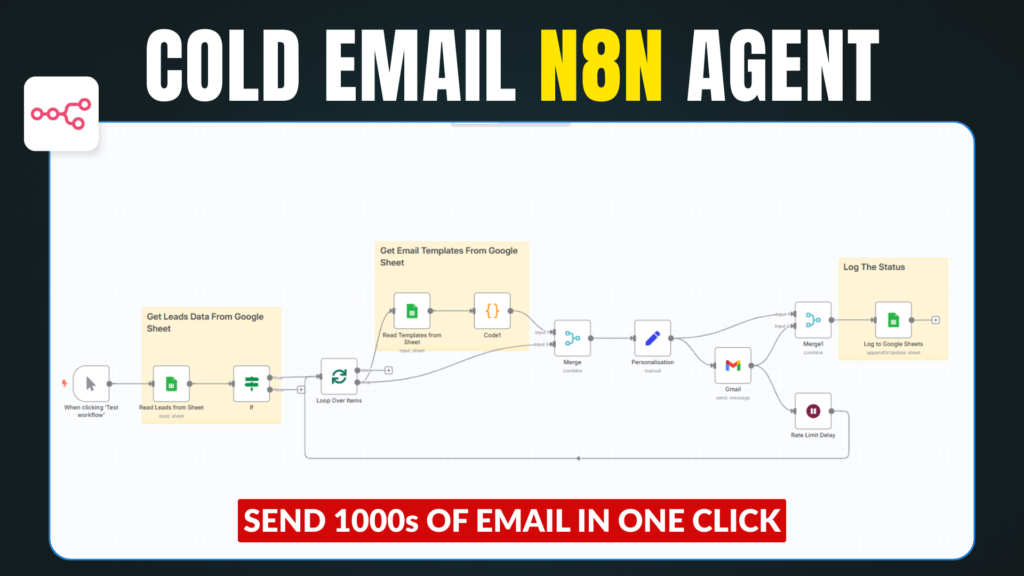
Sending personalized bulk emails just got easier with N8N + Google Sheets! In this guide, I’ll walk you through an entire workflow where you can send emails using either Gmail or your custom SMTP, and log the status back into your sheet.
This blog post includes:
- 🛠️ Full n8n workflow JSON files
- 💻 JavaScript snippets used
- ⏱ Delay mechanism for spam prevention
- ✅ Real-time email status logging
📌 Prerequisites
- A free n8n instance (cloud or self-hosted)
- Google account with access to Google Sheets
- Gmail or SMTP email access
- A Google Sheet with:
- Sheet 1: List of leads (Name, Email)
- Sheet 2: List of email templates (Subject, Body)
🔗 Download Resources
• Download Workflow JSON (For Gmail Node) : Download
• Download Workflow JSON (For SMTP Node) : Download
• Download Leads Sheet File (Sample) : Download
JavaScripts
- Pick a random template JavaScript
// Get templates from previous node
const templates = items.map(item => item.json);

// Check if templates exist
if (!templates || templates.length === 0) {
  throw new Error('No templates found');
}

// Pick a random template
const index = Math.floor(Math.random() * templates.length);
const template = templates[index];

// Convert body to HTML
const bodyHtml = template.Body.replace(/\n/g, '<br>');

// Return in n8n-compatible format
return [
  {
    json: {
      subject: template.Subject,
      body: bodyHtml
    }
  }
];
- Personalisation [name] JavaScript ( Set Node)
{{ $json.body.replace("[name]", $json["Name"] && $json["Name"].trim() !== '' ? $json["Name"].trim() : "there") }}- Send status JavaScript (Gmail version)
{{ $json.labelIds[0] }}- Send status (SMTP version)
{{ $json.response.includes("250 2.0.0 Ok") ? "SENT" : "Failed" }}- Timestamp
{{ new Date().toLocaleTimeString("en-GB", { timeZone: "Asia/Kolkata", hour12: false }) }}🧠 Workflow Overview
Here’s what this automation does:
- Fetches leads from Sheet 1 (name + email)
- Fetches email templates from Sheet 2
- Picks one random template
- Replaces variables in the template (e.g.,
{{name}}) - Sends email using Gmail or SMTP
- Logs send status and timestamp back to Google Sheets
- Repeats with a delay between each